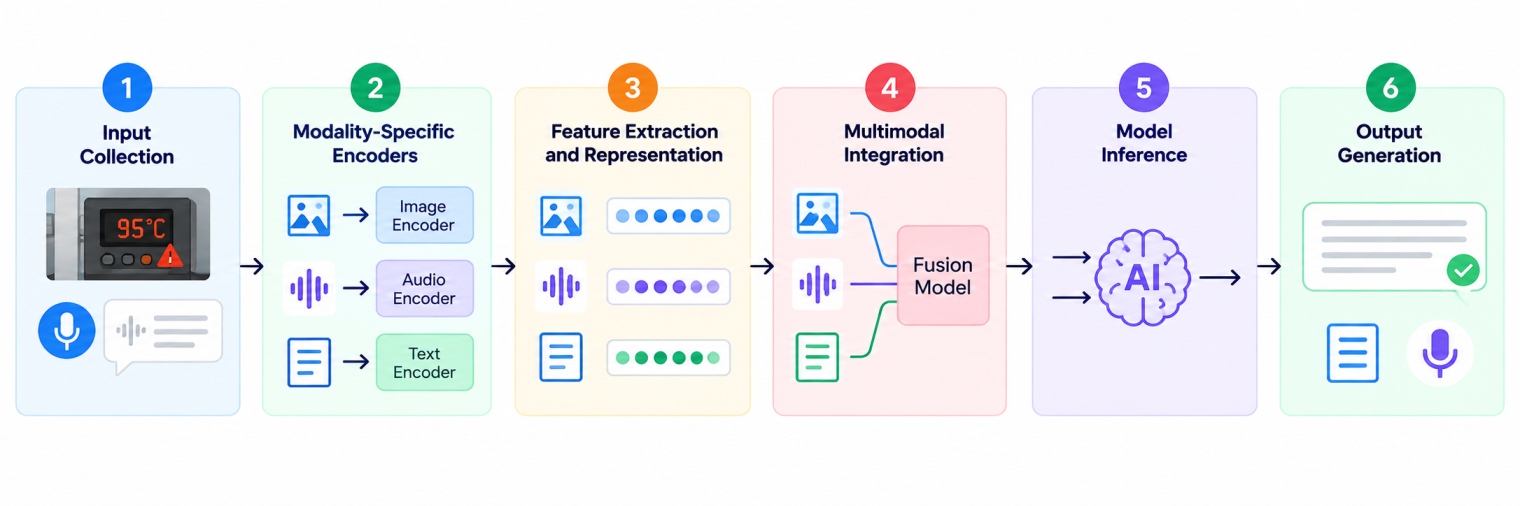
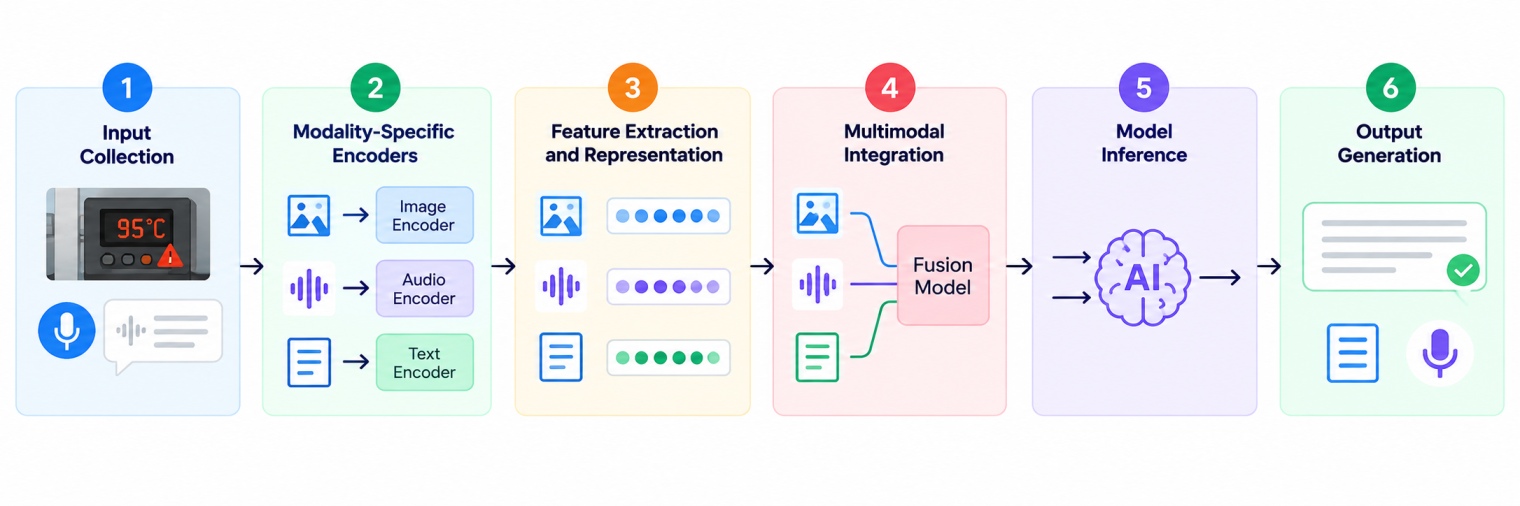
1. Input Collection
The AI system gets one or more forms of input, including text, image, audio, or video.
For example, a technician uploads a photo of a machine dashboard showing a temperature of 95°C and asks through voice, "Is the machine overheating?"
2. Modality-Specific Encoders
The AI system prepares each input for processing. For instance, it may analyze the image to detect the temperature and warning signs and convert the technician’s voice into text.
3. Feature Extraction and Representation
The AI model encodes the input it has received into numerical representations. For instance, it may recognize the temperature reading of 95 degrees Celsius and extract the meaning of the warning sign and the question the technician is asking.
4. Multimodal Integration
The AI system combines the two pieces of information it has analyzed and understood. It connects the temperature reading with the question and identifies what the technician is asking.
5. Model Inference
The model uses the information it has inferred to answer the question. It considers the temperature it has detected and what it knows about the machine’s normal operating range and the warning signs.
It may conclude that the reading it has detected is higher than expected and prompt the technician to check the operating range specified in the owner’s manual.
6. Output Generation
The AI system generates an output in the same format as the input. For instance, it may provide the answer as text or speech if the technician asked the question verbally.
Also Read: What Is Semantic Search? How It Works, Benefits & Examples
Now let’s understand what different types of multimodal AI systems are available on the basis of output it produces.
Types of Multimodal AI
Multimodal AI models are of different types such as Text and image AI, Audio and text AI, etc. Let’s understand each of them below:
Type | Inputs | Possible outputs | Example application |
Text and image AI | Text and images | Text or supported visual outputs | Answering questions about photographs |
Audio and text AI | Speech, audio, or text | Transcripts, answers, or speech | Voice assistants and transcription |
Video AI | Video, sometimes with audio or text | Summaries, descriptions, or generated video | Video analysis and content creation |
Image generation AI | Text prompts and sometimes reference images | Images | Visual design and concept creation |
Speech generation AI | Text or other supported inputs | Audio or speech | Voice-over generation and accessibility |
General multimodal AI | Combinations of text, images, audio, and video | Outputs supported by the model | AI assistants and interactive applications |
Now let’s take a look at what are the tools and frameworks available for developers to make multimodal AI solutions.
Also Read: RAG Architecture Explained: Components, Workflow, Types & Python Implementation
Multimodal AI Tools and Frameworks
Developers can use tools and multimodal AI platforms such as OpenAI API, Google Gemini API, LangChain, etc.
Below are some examples of the most common tools and frameworks:
Tool or platform | Main role | Common use |
OpenAI API | Provides access to models with supported text and image capabilities, along with specialised audio and image tools | Visual question answering, voice applications, and image analysis |
Google Gemini API | Supports multimodal inputs and outputs across compatible models | Document analysis, image understanding, and audio or video tasks |
Hugging Face Transformers | Provides libraries for using compatible pretrained models | Local inference, model experimentation, and multimodal development |
PyTorch | Supports model development and training | Building and customising AI models |
LangChain | Helps connect models with tools, data, and application workflows | Multimodal AI assistants and retrieval workflows |
LlamaIndex | Connects AI applications to external data and retrieval pipelines | Document and knowledge-based assistants |
Now after exploring a lot about the multimodal AI systems, let’s understand practically how you can make a multimodal AI application.
Also Read: Retrieval Augmented Generation (RAG): How It Works, Types, and Applications
How to Build a Multimodal AI Application?
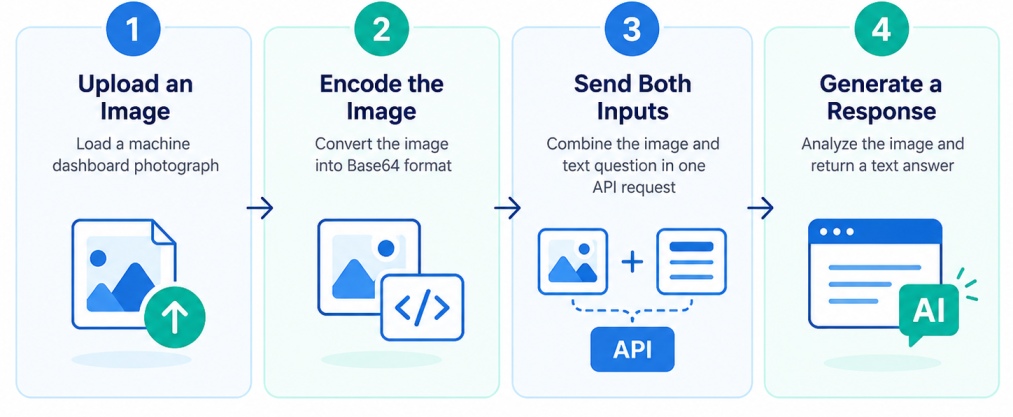
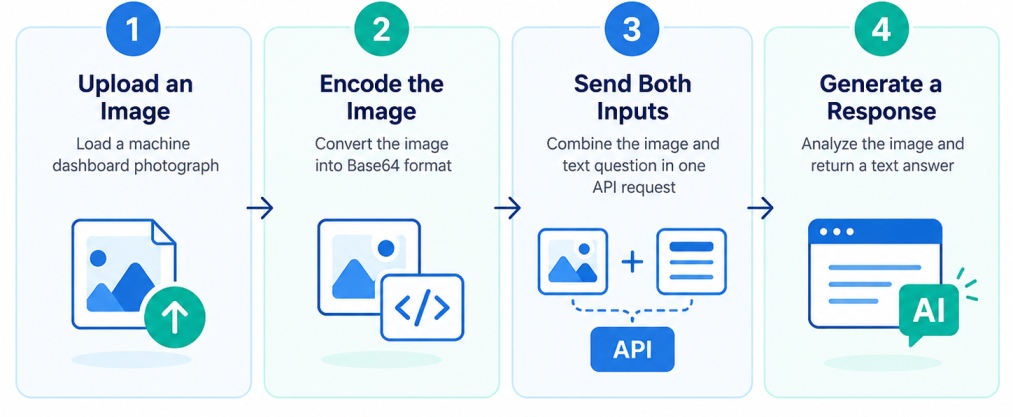
We can develop a simple multimodal application in Python by using a vision API. Our application will be able to accept an image and a text query from the user, analyze the input data, and provide an output.
Let’s create an image QA (question/answer) application using the OpenAI API. Suppose our application can accept technicians’ photos of dashboards and answer their questions like “What does that warning sign mean?”
Now, let’s see how we can use Python + OpenAI to create such an application.
Step 1: Install the Required Library
First, install the OpenAI Python library. It allows your Python application to communicate with the OpenAI API.
Run the following command in your terminal or Google Colab:
pip install openai
You also need an OpenAI API key and access to a compatible vision-capable model.
Set your API key as an environment variable instead of writing it directly into your Python code.
On macOS or Linux, run:
export OPENAI_API_KEY="your_api_key"
On Windows PowerShell, run:
$env:OPENAI_API_KEY="your_api_key"
Replace your_api_key with your actual API key. The Python library reads this environment variable when you create the API client.
Step 2: Import Libraries and Prepare the Image
Next, import the required libraries and load the image you want the application to analyze.
You will use two libraries:
Use the following code:
import base64
from pathlib import Path
from openai import OpenAI
# Create the API client
client = OpenAI()
# Set the path to the image
image_path = Path("sample.jpg")
# Check whether the image exists
if not image_path.is_file():
raise FileNotFoundError(
f"Image file not found: {image_path}"
)
# Convert the image to Base64
def encode_image(image_path):
with open(image_path, "rb") as image_file:
return base64.b64encode(
image_file.read()
).decode("utf-8")
base64_image = encode_image(image_path)
print("Image loaded successfully.")
Save your image in the same folder as your Python script and name it sample.jpg. You can also provide the full path to the image file.
Step 3: Send the Image and Text Prompt to the Model
Once the image is ready, send it to a vision-capable model along with a text instruction.
For this example, the technician wants to understand a warning symbol on a machine dashboard. The application must examine the image and explain the visible details.
response = client.responses.create(
model="gpt-5.6",
input=[
{
"role": "user",
"content": [
{
"type": "input_text",
"text": (
"Describe the main elements in this "
"machine dashboard image. Identify any "
"visible warning symbols and explain "
"what they might indicate."
),
},
{
"type": "input_image",
"image_url": (
f"data:image/jpeg;base64,{base64_image}"
),
},
],
}
],
)
print(response.output_text)
This code uses the OpenAI Responses API to send the text prompt and image in a single request. The gpt-5.6 model supports image inputs through this API. Check the official image and vision guide for supported formats and input options.
Here is what the main parts of the code do:
client.responses.create() sends the request to the model.
model="gpt-5.6" specifies which model should process the inputs.
input_text contains the instruction or question.
input_image provides the image through a Base64-encoded data URL.
response.output_text retrieves the generated text response.
Step 4: Understand the Application Workflow
The application follows a straightforward sequence: